Sublime Merge 2 Build 2121 โปรแกรม Git GUI ใช้งานง่าย
ดาวน์โหลด โปรแกรม Sublime Merge 2 Build 2121 (x64) โปรแกรม Git GUI เร็ว ลื่น ใช้งานง่ายสำหรับนักพัฒนา ฟรี

ดาวน์โหลด Sublime Merge 2 Build 2121 โปรแกรม Git GUI ใช้งานง่าย
Sublime Merge 2 คือโปรแกรม Git GUI จากทีมผู้พัฒนา Sublime Text ที่ออกแบบมาเพื่อให้การใช้งาน Git ผ่านหน้าตาแบบกราฟิกทำได้ “เร็วและคล่อง” เหมาะกับทั้งผู้เริ่มต้นและนักพัฒนาที่ทำงานกับ Git ทุกวัน จุดเด่นของ Sublime Merge 2 คือความลื่นไหลในการดูประวัติการ commit (Commit History), การจัดการ branch, การ resolve conflict และการทำงานกับ repository ขนาดใหญ่ โดยยังคงความเรียบง่าย ไม่รก และโฟกัสการทำงานจริง
จุดเด่นของ Sublime Merge 2
-
เร็วและลื่นมาก เปิด repo ใหญ่ๆ ได้ไว เหมาะกับงานจริงในทีม
-
ดูกราฟ branch/commit ชัดเจน ทำให้เข้าใจประวัติและการแตก branch ได้ง่าย
-
Merge / Rebase / Cherry-pick สะดวก ทำงาน Git ขั้นสูงได้ผ่าน UI
-
Resolve Conflict ง่ายขึ้น เปรียบเทียบไฟล์และเลือกการแก้ไขได้เป็นระบบ
-
ใช้งานคู่กับ Sublime Text ได้ดี เหมาะกับสายโค้ดที่ชอบความเบาและเร็ว
Sublime Merge 2 ใช้ทำอะไรได้บ้าง
-
Clone / เปิด Repository และจัดการ Remote (origin ฯลฯ)
-
Commit, Amend, Revert, Stash และจัดการไฟล์ที่เปลี่ยนแปลง (Diff)
-
สร้าง/สลับ/ลบ Branch และจัดการ Tag
-
Merge, Rebase, Squash และแก้ Conflict
-
ดูประวัติ Commit แบบละเอียด ค้นหา commit/ไฟล์/ข้อความได้สะดวก
เหมาะกับใคร
-
นักพัฒนาที่อยากได้ Git GUI ที่เร็วกว่าและใช้งาน “ไม่รก”
-
คนที่ทำงานกับ branch เยอะๆ และต้อง merge/rebase เป็นประจำ
-
ทีมที่ต้องการเครื่องมือช่วยดูประวัติ commit และแก้ conflict แบบชัดเจน
-
ผู้ใช้ที่คุ้นกับ Sublime Text และอยากได้ workflow ที่ไปด้วยกัน
Sublime Merge 2 คือ Git GUI ที่เน้นความเร็ว ความลื่น และความเรียบง่าย เหมาะกับทั้งงานส่วนตัวและงานทีม ช่วยให้การจัดการ commit, branch, merge/rebase และการแก้ conflict ทำได้สะดวกขึ้น โดยเฉพาะคนที่ทำงานกับ Git บ่อยและต้องการเครื่องมือที่ “เร็ว ใช้งานง่าย และดูประวัติชัด” Sublime Merge 2 เป็นตัวเลือกที่น่าใช้มาก
คุณสมบัติเด่น (Key Features)
- INTEGRATED MERGE TOOL
The Integrated Merge Tool allows you to resolve any merge conflicts directly in Sublime Merge, rather than having to open up your editor of choice.
Conflicts are presented with a 3-pane view. On the left are your changes and on the right are theirs. In the center pane is the resolved text, with buttons to choose between your changes or theirs. The same text editing functionality as Sublime Text is also available for more complicated merges.
Clicking on the header in the middle pane will switch between the editable merge results and the base file.
Use Ctrl+S or the Save button to save your merged file. - POWERFUL SEARCH
Use find-as-you-type search to dig up the exact commit you’re looking for.
Search for commit messages, commit authors, file names, and wildcard patterns. Complex search queries can be constructed using and, or and () symbols.
For example min-parents:2 author:jskinner path:tests/* (bug fix or test) will search for a merge commit from jskinner inside the tests directory that contain the words “bug” and “fix” or the word “test”.
You can open search with Ctrl+F or through the menu: Navigate – Search. - UNMATCHED PERFORMANCE
Sublime Merge is built on the same custom platform as Sublime Text, providing unmatched responsiveness. With a powerful, cross-platform UI toolkit, an unmatched syntax highlighting engine, and a custom high-performance Git reading library, Sublime Merge sets the bar for performance. - BLAME
Open the Blame of a file through the Command Palette or when viewing a commit to see exactly which lines of the file were added by which commits.
Easily view the age, author, and commit hash of every line of code and see which lines come from the same commit with our commit color coding. Click a line in the gutter to highlight all other lines from the same commit.
The blame tool will also detect when a piece of code was moved from another place in your repository, so you can truly follow the history of your code. - ADVANCED DIFFS
Where it makes sense we will show you exactly which individual characters have been changed for a commit.
This includes when you rename or move a file, when you’re resolving conflicts or just viewing commit history.
Select any two commits in Sublime Merge with Ctrl+Left Mouse to show the diff between them. - FILE AND HUNK HISTORY
From any file or hunk in the history use … – File History or the Hunk History button to view the full history of that source code. This will also follow any file moves or renames throughout the repository. - COMMAND PALETTE AND KEY BINDINGS
Keyboard usage is important to us. Use Tab to navigate through parts of the application, Space to toggle expansion, and Enter to stage/unstage hunks. When writing a commit message, use Ctrl+Enter to commit.
The Command Palette is triggered by Ctrl+P and allows quick access to a large set of Git commands as well as other Sublime Merge functionality. - LIGHT AND DARK THEMES
Choose between a light and a dark theme to suit your tastes. You can preview these themes above.
Open the Preferences – Preferences… menu to change theme.
The dark theme is only available with a valid license key. - EXTENSIBILITY
Just like Sublime Text, just about everything in Sublime Merge is extensible. Key bindings, menus, theming, and the command palette are all customizable with simple JSON files. - SYNTAX HIGHLIGHTING
Sublime Merge performs full syntax highlighting identically to Sublime Text for every line of code you see. - We’ll even use any extra syntax definitions that we find in your Sublime Text installation for syntax highlighting!
- COMMAND LINE INTEGRATION
Sublime Merge is designed to work hand in hand with the command line. All changes to the repository are updated live and everything works the same way whether it’s triggered from the command line or the UI. Use the terminal where it makes sense and use the GUI where it works best. - Use the smerge tool that comes with Sublime Merge to interact with it from the command line: open repositories, blame files or search for commits
- REAL GIT
Sublime Merge uses the same terminology as Git, and doesn’t make use of any state beyond Git itself. When you’re working with Sublime Merge, you’re working with Real Git, not a simplified version
You can also hover over most buttons to see which git command it will run.
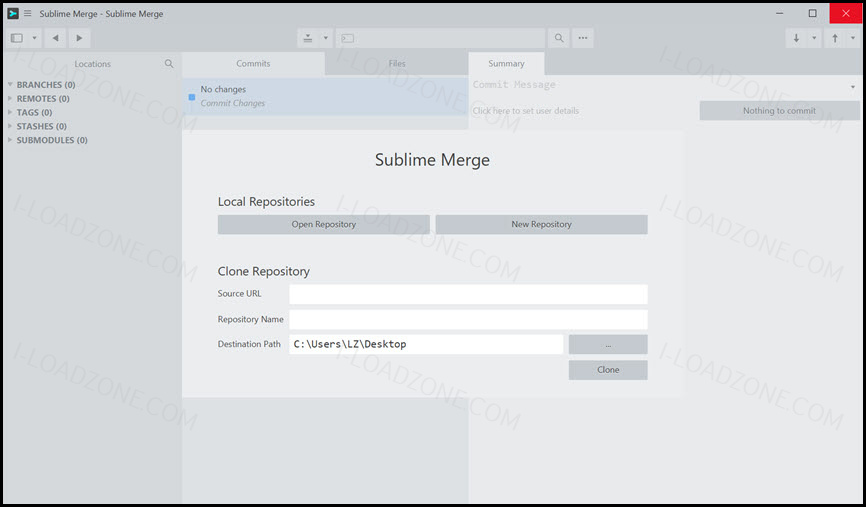
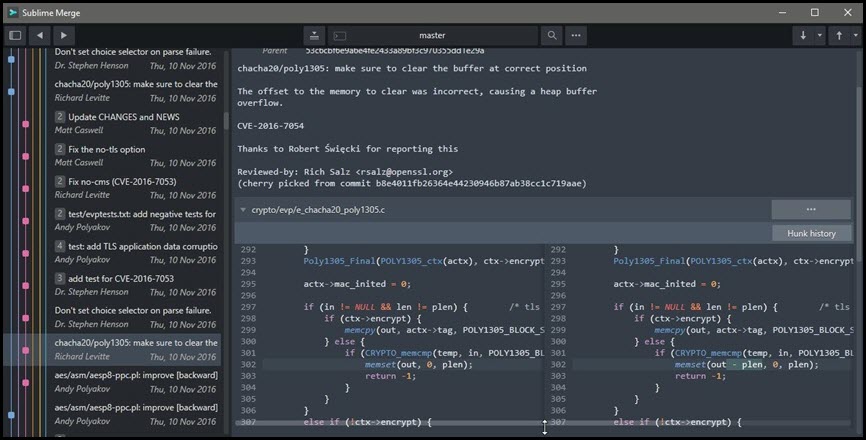
ภาพตัวอย่างโปรแกรม (Screenshots)
ความต้องการของระบบ (System Requirements)
ข้อมูลไฟล์ (File Info)
License : Trial
Software Version : 2 Build 2121
ชื่อไฟล์ : SM2B2121(64).rar
ขนาดไฟล์ : 33.0 MB
นามสกุลไฟล์ : *.rar
เซิฟเวอร์ : Pixeldrain | Box
วันที่อัพโหลด : 26/12/2025
แก้ไขล่าสุด : 26/12/2025
รหัสผ่าน : sbz
โปรดระวังโฆษณาเด้งไปหน้าอื่น เช็คชื่อไฟล์, ขนาดไฟล์ ก่อนดาวน์โหลดทุกครั้ง
ดาวน์โหลด
รหัสแตกไฟล์คือ sbz
วิธีดาวน์โหลด วิธีแก้ลิ้งค์เกินโควต้า
" This file is for trial/educational and non-commercial use only. Using non-genuine software may cause various problems to use this software without any problems Please purchase a genuine license from the official website. "